|
 |
|
|
|
Applicable with Version 2.5 Oct 2010 |
||
Help Version 2.5.123 |
||
|
|
||||||||||||
|
|
|
|
|
Contents Introduction Concepts User Help Modeler Help Browser Help
|
|||
 |
|||
|
|
||
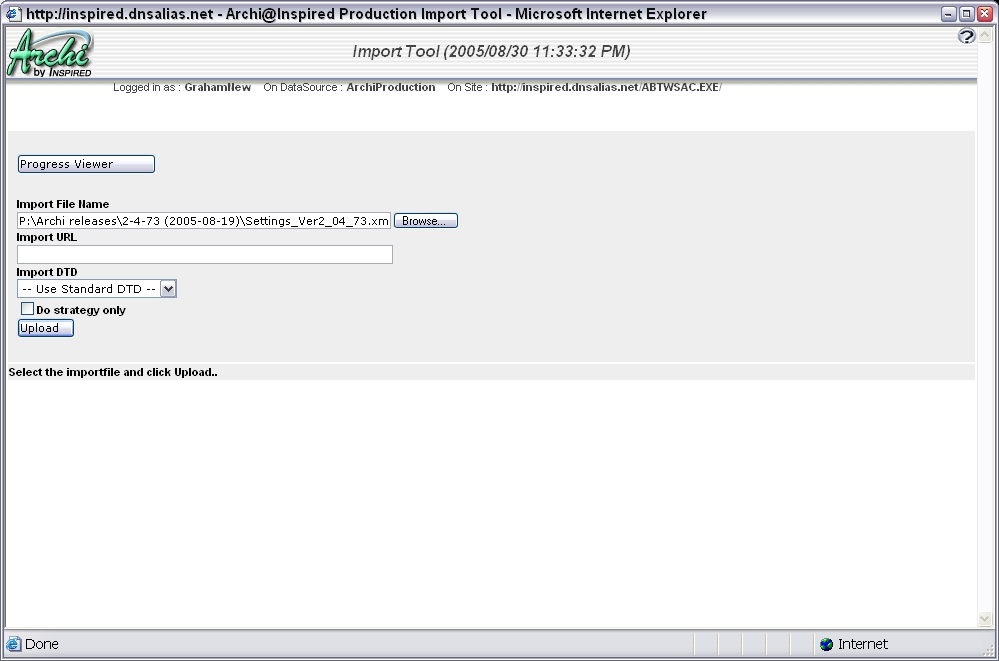
Import UtilityGeneral Import InformationEVA Netmodeler can import information in XML and CSV formats. XML is the eXtensible Markup Language, a standard way of exchanging semantics between tools using structured text files. CSV is Comma Separated Variable format, commonly used to exchange data between spreadsheets and databases. XML is richer and more flexible, but also verbose. Import tool is reached from the main system menu. You can import from a file location or a URL. You can elect to use the standard DTD (Data Type Definition) provided by EVA Netmodeler, or (for advanced users only), provide and nominate your own. If you do a "strategy only" import, the import process will be simulated, without actually altering anything in the repository. This can allow you to see the impact of an import before actually doing it. Turning "strategy only" off allows the real import to take place. The Upload button starts the import. Progress will be displayed automatically at the end of the process, but you can view the progress of long running imports before completion by clicking the Progress Viewer button. If you have both meta and instance data to import for a type, you should import the meta data first to create the appropriate type definition, then import the content. The import process will create new items for items in the import file but not in the repository. It will update items already in the repository for which there is information in the import file. It will not remove any relationships already in the repository. It will overwrite property values in the repository with new values provided in the import file. If there are events monitoring the types affected by the imported data, these events will be correctly triggered. E.g. if you import System Settings, the Refresh Settings event will be triggered. When you are importing related items, say A and B, each will have details about their relationship e.g. A belongs to B and B owns A.
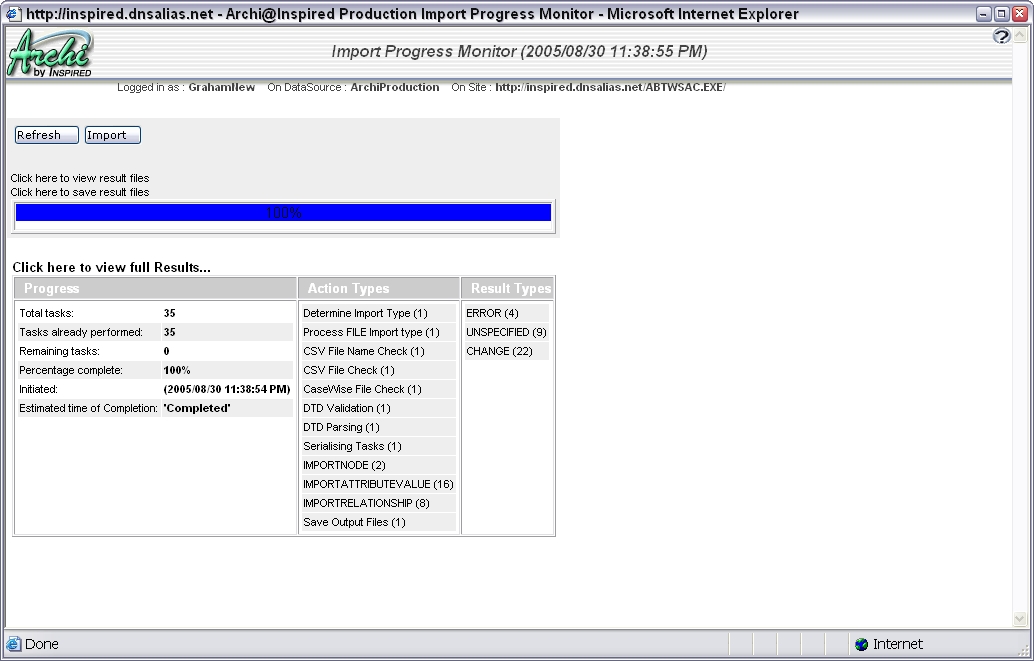
Monitoring ProgressThe Import Progress Monitor allows us to see how the import has run, or is running. The report provides a summary of the number of tasks in the import process, how many have been performed, how many remain, what percentage of the process is complete, when it was initiated and when it is expected to complete. It also lists the types of actions involved and the results generated by these. The results are put into categories. You can click the links for these to see detailed import results for the category chosen. The Refresh button allows you to update the query. You can also click the links to see previous result files, or to save the current file for future viewing. Files are saved on the server in a designated directory with a directory per import operation (date and time stamped) and a file per import action, per result type and for the overall import statistics. They are saved in CSV format so that spreadsheet type analysis can be performed on them. They also record the time taken for the various operations.
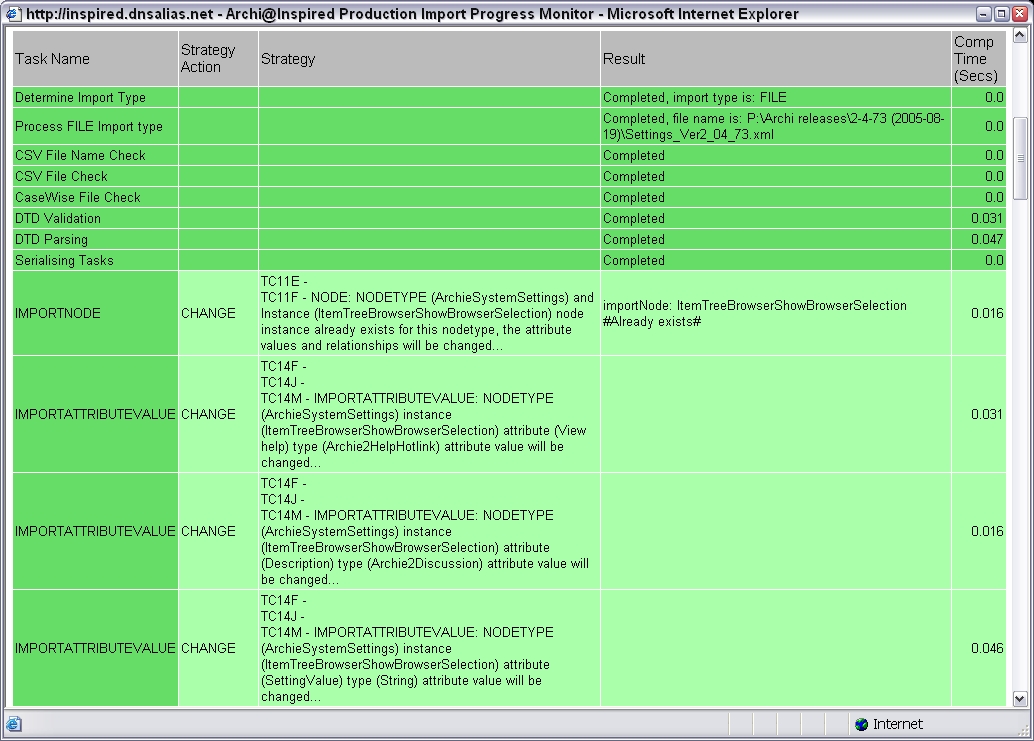
Import ResultsIf you choose to view the detailed results, you will get a report similar to the one below. This enables you to see the operations performed, how long they took, and the results of each operation. Any errors will be reported here. This can help you diagnose any import problems. |